
As a data recipient at GS1 Belgium & Luxembourg, you have access to reports on all product sheets published to you. These reports show:
- Which product sheets are complete based on the current data models;
- Which product sheets have been checked through the audit programme, including their score.
Based on these reports, you can identify which suppliers still have missing product information and which suppliers have or have not successfully participated in the audit programme.
General tips & tricks
- Almost all tables and visuals in the report can be exported. To do so, click on the table or chart and use the three dots at the top. Please note that exports are always limited to 150,000 rows!
- The filter options allow you to refine your selection. Use CTRL to combine multiple values. You can minimise the filter panel again using the ‘Hide filter panel’ button.
How does it work?
Via the ‘My Reports’ tab, you have access to 2 separate reports: the ‘Validation Report’ for the completeness of product sheets and the ‘Audit Report’ for their accuracy.
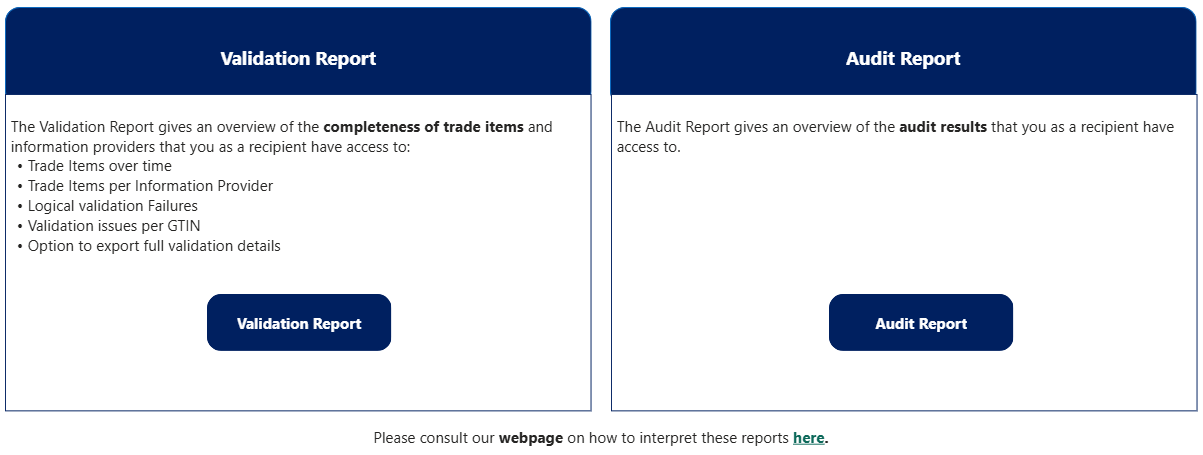
Validation Report
This report gives you an overview of completeness, assessed against the validation rules of the current Benelux data model. The completeness of items has a direct impact on the visibility of product sheets in My Product Manager.
In this section, you see an overview of:
- the overall data quality score of all data providers (1)
- the companies with the most products (2)
- the most common errors/warnings (3)
- the timestamp of the latest version of the report (4)
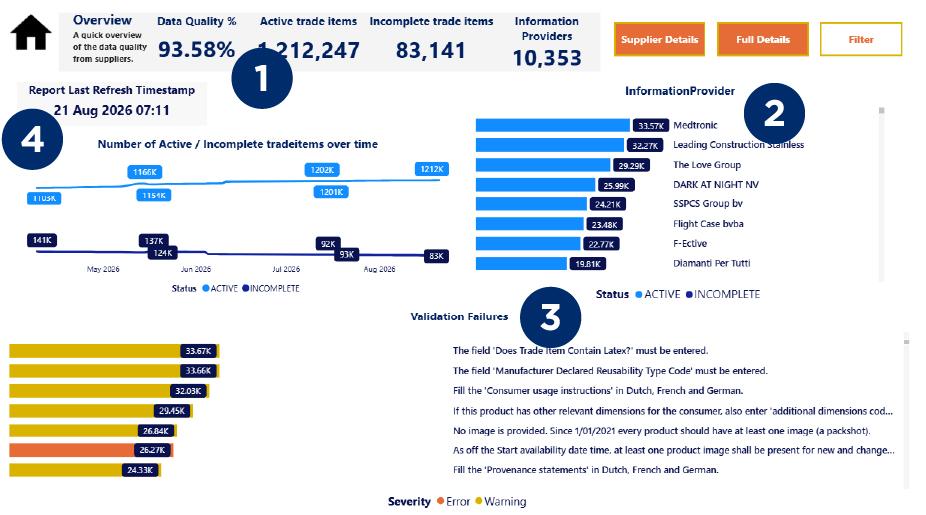
The dashboard is dynamic. When you click on a specific supplier in the ‘Information Provider’ list (2), you automatically see an overview of the validation rules (Validation Failures) that apply to this supplier at the bottom (3). Conversely, when you select a validation rule, the list of data providers will show all suppliers whose data contains this error.
The data quality report distinguishes between warnings and errors.
- Products with errors are not visible to you as a data recipient. These product sheets must therefore be corrected or completed by the data provider.
- Products with warnings, which are not blocking, are visible in your product overview. However, the product information does not comply with the sector agreements defined in the data model and the corresponding validation rules.
In addition to the general dashboard, the report also contains two levels of detail:
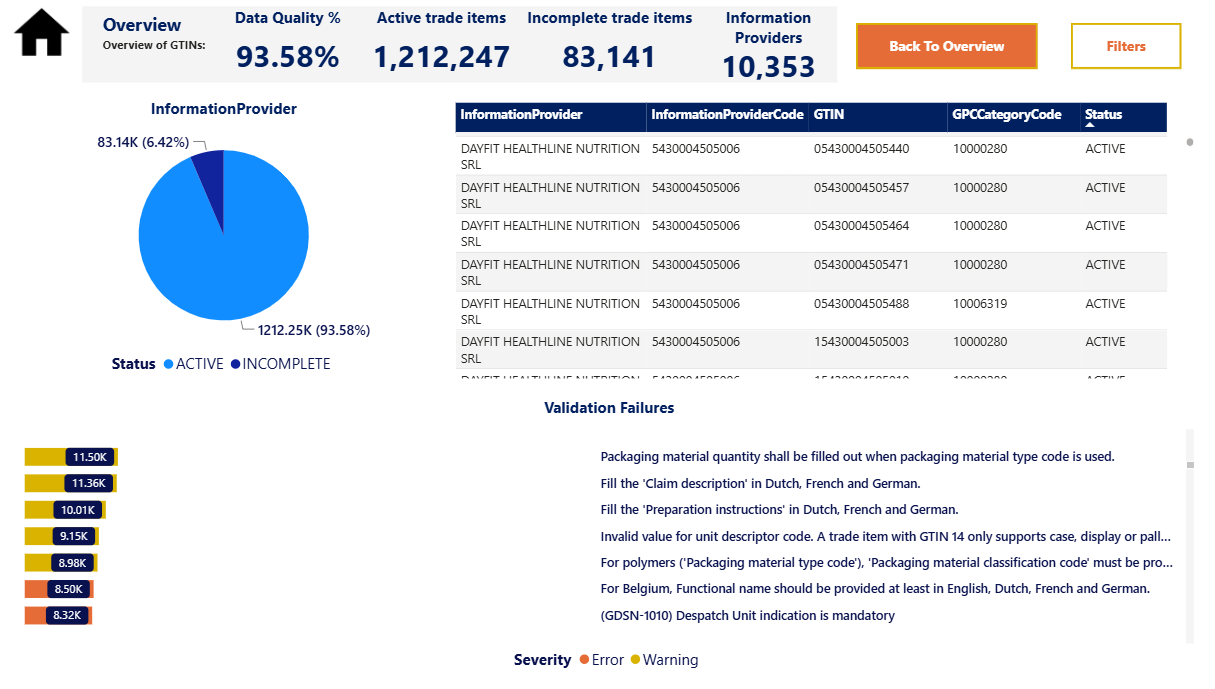
Would you like to see the status of all products for each supplier? Click ‘Supplier details’ in the general overview.

You will then be taken to the following overview, where you can use the filter at the top right to search for the GLN or name of your data provider and find all their products and their status in the table. You can also search for a specific GTIN.
Under ‘Validation Failures’ at the bottom, you see an overview of the warnings and errors for the filtered products. You can also select the row for a specific GTIN in the table, after which only the errors and warnings, if any, for the selected product will be highlighted in the overview.
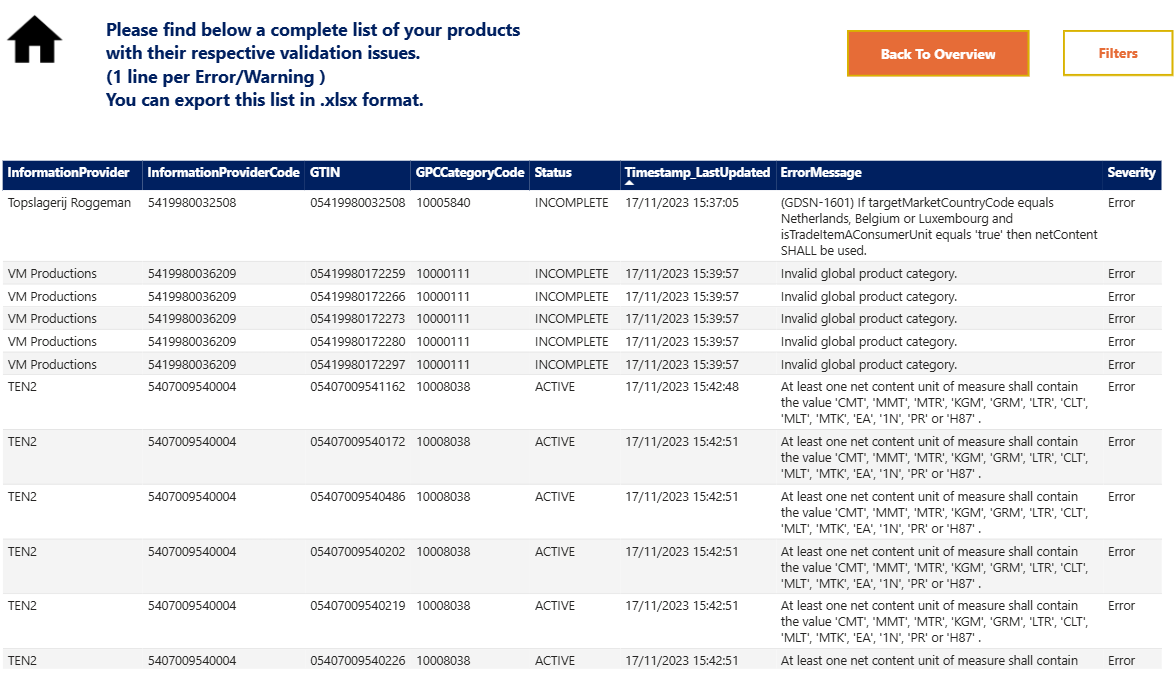
Would you like to go into even more detail? The ‘Full Details’ button gives you a detailed overview of all errors and warnings per GTIN. You can filter by supplier or product, as well as by incomplete items or specific error messages.

Audit report
The audit report provides you with the information you need about the accuracy of the product sheets published to you, after GS1 has carried out a content audit. A score is only calculated for GTINs that have participated in the audit.
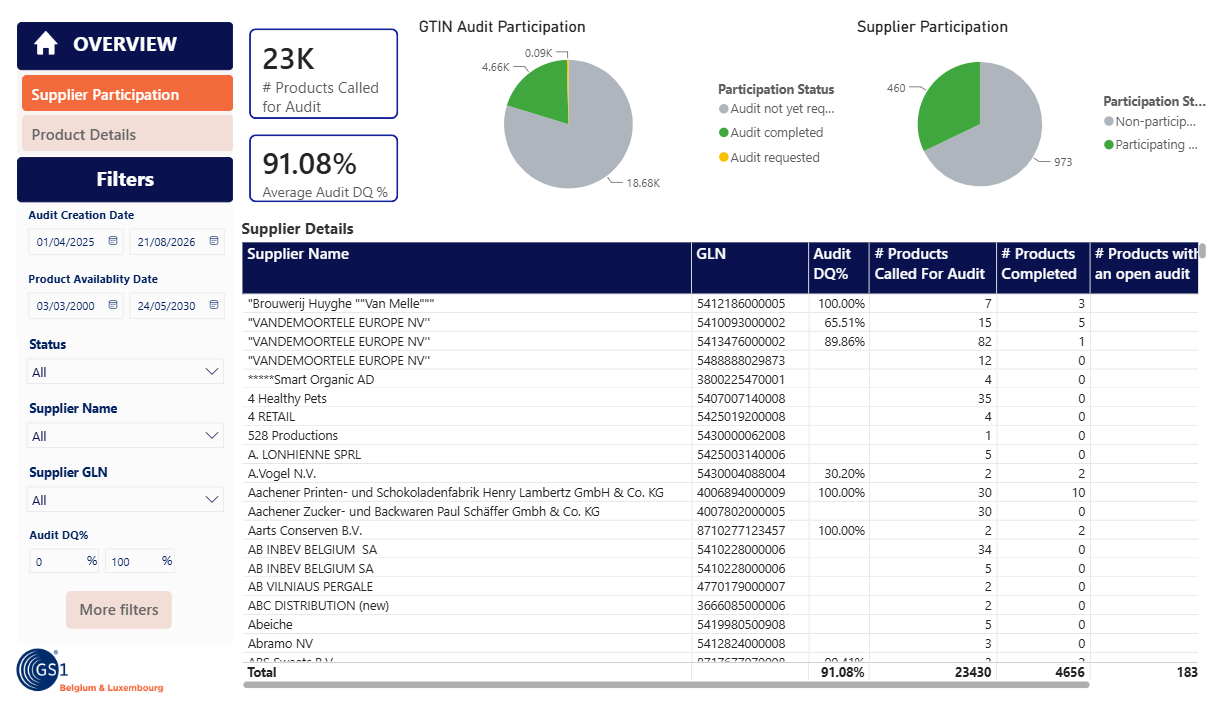
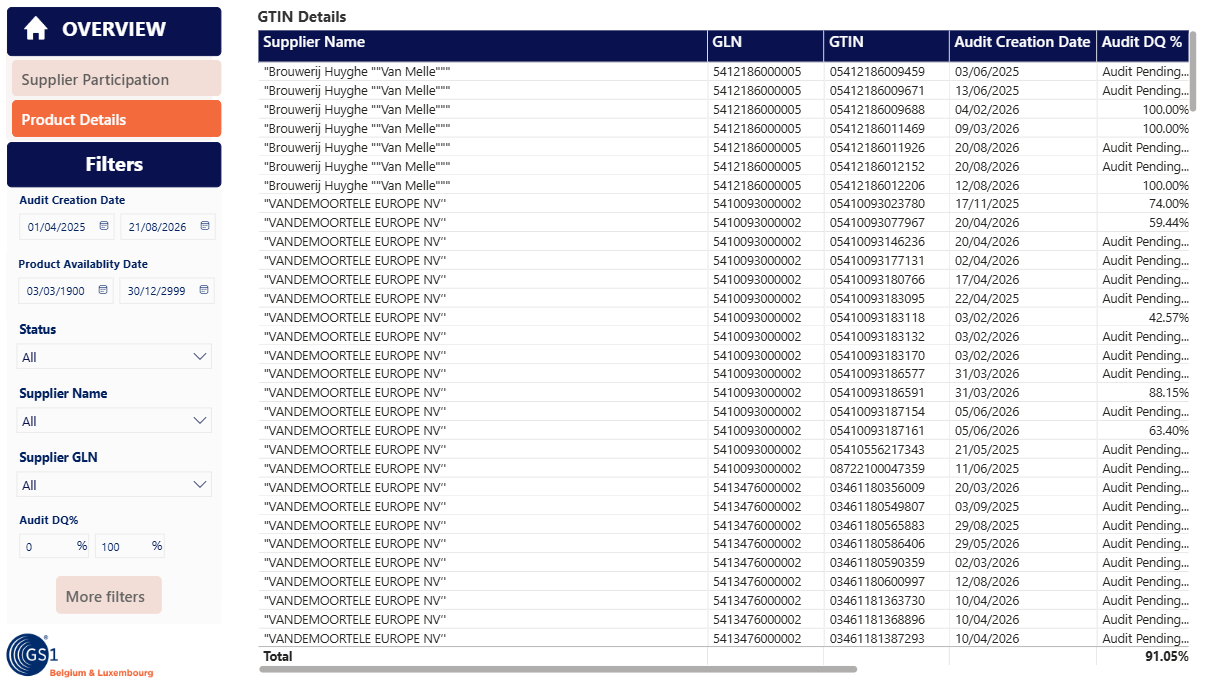
Use the ‘Product Details’ button to switch to a second table where the data is displayed at GTIN level. Scroll to the right to see all columns.
Using the reports in practice
Would you like to start using these reports as a data recipient? Here is a possible step-by-step approach you can follow.
- Determine which supplier and/or items you want to check for data quality. In My Product Manager, the GLN (supplier) and GTIN (items) are the unique identification keys, so make sure you have them to hand!
- Start in the ‘Validation Report’ and filter by GLN/GTIN.
- You can’t see the supplier and/or items? There may be several reasons:
- Your supplier does not have a valid My Product Manager Share connection. On this page, you find an up-to-date list of all registered My Product Manager Share users. Always check whether your supplier is active on this list. If not, you can ask them to activate their connection. Your supplier can follow these steps.
- Your supplier has not yet created or published the product. Ask your supplier to check whether the item exists in My Product Manager. Your supplier can follow these steps.
- The publication is not visible due to a difference in settings. For example, if you choose to receive only items using the FMCG data model and your supplier publishes according to the DIY data model, you may not see the product sheet. Contact support@gs1belu.org to determine the appropriate solution.
- You can see the products? Then check their status.
- GTINs with an ‘ACTIVE’ status have been validly published in accordance with the relevant data model. No further action is required.
- GTINs with an ‘INCOMPLETE’ status are incomplete and are not visible to you in ‘My Products’. To resolve this, the supplier must make the necessary changes and publish the data again. Your supplier can follow these steps.
As a data recipient you can check via ‘Full Details’, which errors are blocking the product sheet.
- You can’t see the supplier and/or items? There may be several reasons:
- For all items that are valid in the ‘Validation Report’, you can carry out an additional check in the ‘Audit Report’. Here as well, filter by GLN and/or GTIN.
- You can’t see the item? It probably did not meet all the conditions to be included in the scope of the audit. You can find the conditions here.
- You can see the item? Then you can check its status:
- If the status is ‘New’ and there is no score, the GTIN still needs to be audited. Ask your supplier to initiate the audit.
- Is the score below 100%? This means that the data in My Product Manager does not match the information on the label. Ask your supplier to make the necessary changes and request a new audit.
- Is the score 100%? The data is fully correct and no further action is required.