
GPSR (General Product Safety Regulation) is an EU regulation on product safety. The goal is to protect the consumer, among others.
For GPSR, contact information must be available in My Product Manager.
Right now, there's a difference in the code that must be used for FMCG and DIY, garden & pet.
How to work per sector:
- Do you sell to FMCG companies? Use contact code type CXC
- Do you sell to companies in DIY, garden & pet? Use contact code type BZL
- Do you sell to both? Use both codes
What information should you enter?
Enter the same contact information as printed on the packaging. See example below.
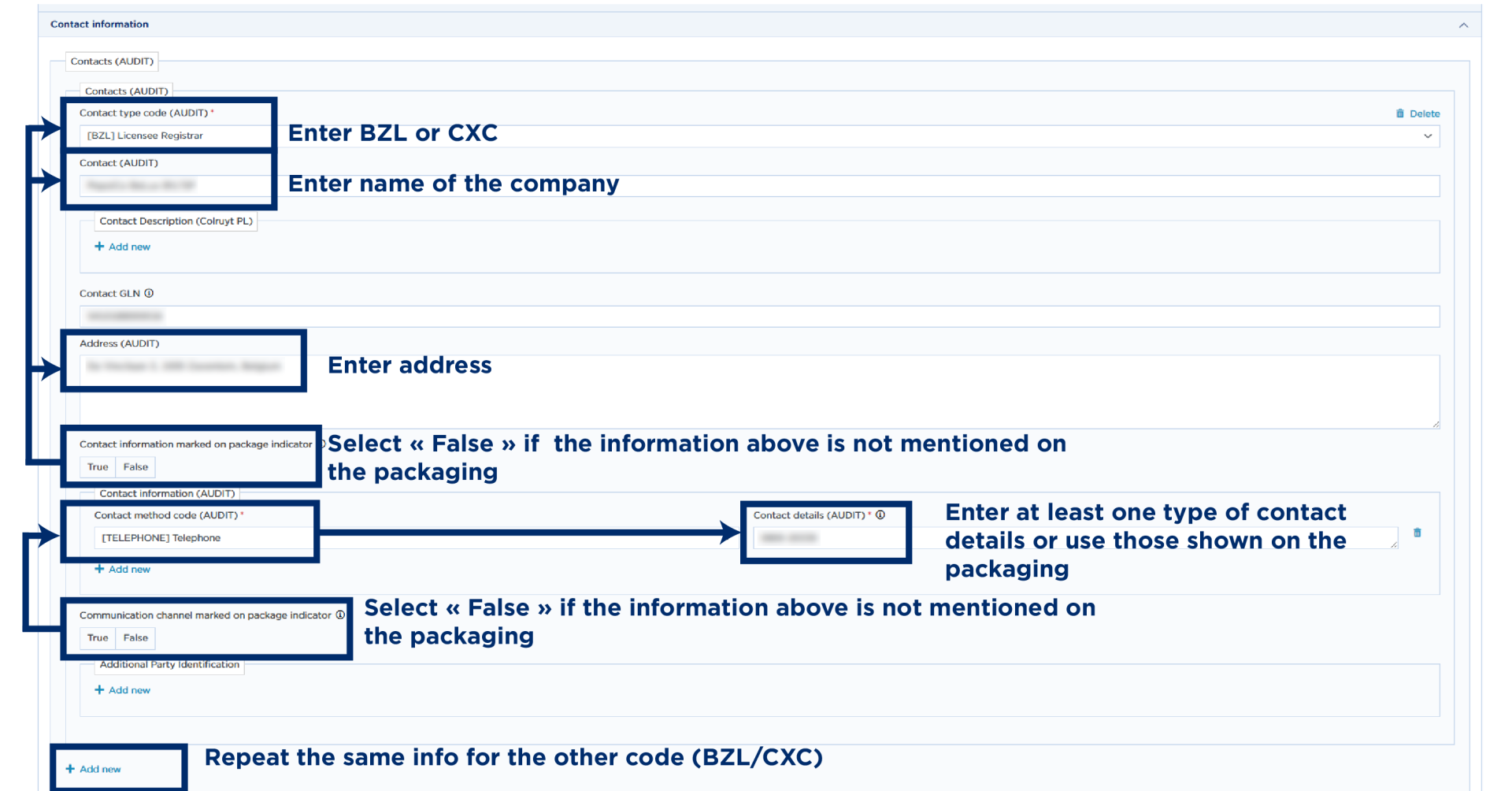
No contact info on the packaging? Enter the contact information and mention that it is not printed on the packaging.
Important! Never use personal contact details as retailers might publish the info on their websites. Use a generic contact email address for that reason (info@xxx.be).
Tips for companies that are active in both sectors:
When entering the code, you can
- Use the target sector field to show which sector the item is for. Then you only need to enter BZL or CXC based on validation.
- Or simply enter both codes by default.
How to solve?
Want to update existing items? You can do this easily via Excel or a bulk action to update all consumer units in one go.
Option 1 – Bulk update (if all items have the same details or can be filtered by brand):
- Go to ‘My Products’.
- First, export all your data. The bulk action will overwrite your data. If anything goes wrong, you’ll have a backup that you can restore.
- Then return to the ‘My products’ screen.
- Filter ‘Consumer unit’ to ‘Yes’ and ‘Discontinued’ = ‘No’.
- If necessary, filter further by brand if you use this in your product listings.
- Select all items and choose ‘bulk action’.
- After the selection overview, you can choose ‘Publish automatically?’; set this to ‘Yes’.
- Select ‘Update attributes’ and go to ‘Contact details’, where you select ‘Contact’.
- Complete the contact information in the module and validate.
Option 2 – Excel
- Enter the information for one product sheet, validate and release it.
- Go back to the product overview.
- Filter on ‘Consumer Unit’ = Yes and ‘Discontinued’ = No.
- Select everything for export and follow the download steps.
- Too many items? Split them by category or brand to make it easier to manage and avoid overwriting data.
- In Excel, look for the BZL field – this is the start of the contact information columns (to the right).
- Fill in the data for the other products and re-upload the file. (You can choose to publish automatically or manually.)